Using a centcols.org mailbox
This tutorial is intended for members of the Club des Cent Cols who have an e-mail account within the Club, i.e. with an address such as ...@centcols.org. To use such an account, you must have received your exact address and a password. If you have not yet received your exact address and password, please send a request to our «support» address.
As with any email account, there are several ways of logging on to your centcols.org email account:
1) using an email client on your computer (Thunderbird, Windows Mail, BlueMail etc.)
2) via client software on a telephone (various Android or iOS applications)
3) via a web browser (Firefox, Chrome, Edge, Safari, Opera or any other)
These three ways of connecting are available to choose from. It is also possible to combine them, for example by regularly using the first from your main computer, but the second when you are travelling and the third when you are working on another computer.
Initial connection with Thunderbird or Betterbird
We are using Thunderbird (free software) as an example here, but other software can be installed in a fairly similar way. In particular, Betterbird, developed on the basis of Thunderbird, can be installed in the same way. If you can't find your own client software here, skip to the next chapter.
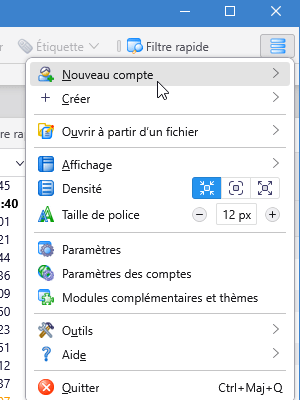
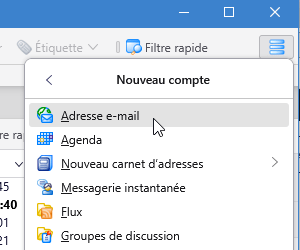
If you haven't already done so, download the software from its website (thunderbird.net or betterbird.eu) and install it. Once the software is open on your screen, click on the menu button with its 3 horizontal bars, then on «new account» and «e-mail address».
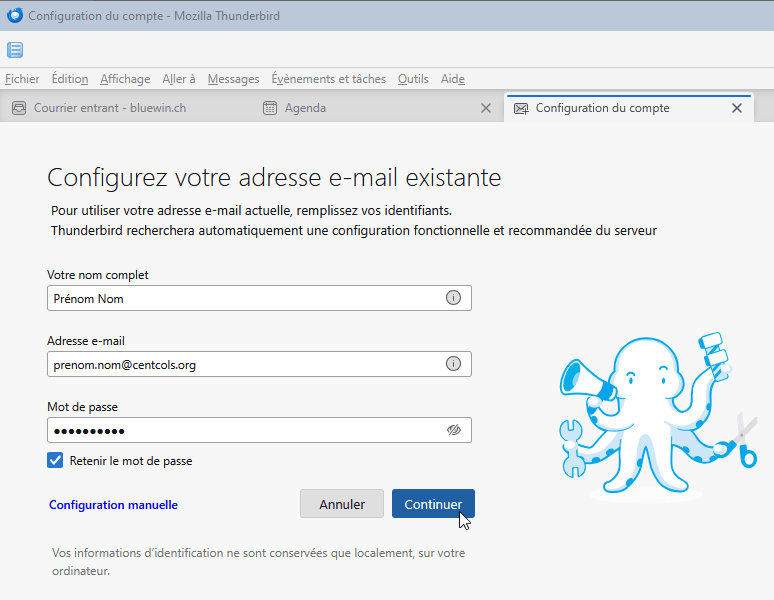
On the next screen, enter your first and last name in the boxes provided, followed by the @centcols.org address you have been given and finally your password. Click on «Continue».
Thunderbird then tries to find this account. When it has, you will be presented with a choice between IMAP and POP3 configuration. Unless there is a particular reason, it is recommended that you keep IMAP as the pre-selected option and click «Done». The password is then verified and the account opens in the main Thunderbird window. With an inbox, an outbox and so on, the account is set up. The initial connection is then established and can be used every time Thunderbird is launched on this computer. Installation is now complete for this device.
Initial connection using a mobile phone or other client software
You can obtain detailed instructions depending on the system used, whether it's for a phone or a tablet, and more generally for any computer. To do this, first go to our webmail site by entering the following address in a web browser: https://centcols.org:2096
After logging in with your ...@centcols.org address and password, this should take you to a page with a «Roundcube» logo. But if you go straight to your inbox, click on «webmail home» on the left. You will then see a «setup email on your device» block. For use from a mobile phone (smartphone) or tablet, you can choose the model you want «Apple» or «Android» and enter an email address that already works for you.
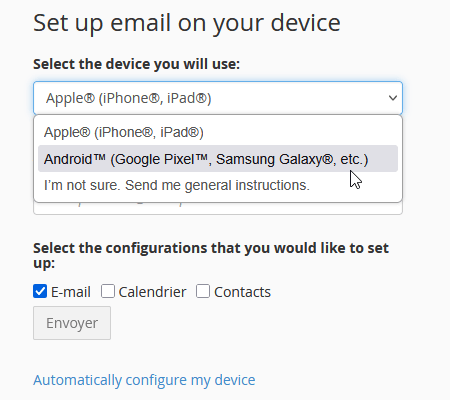
Once you have clicked on «send», you will receive a message at the address given with all the necessary instructions.
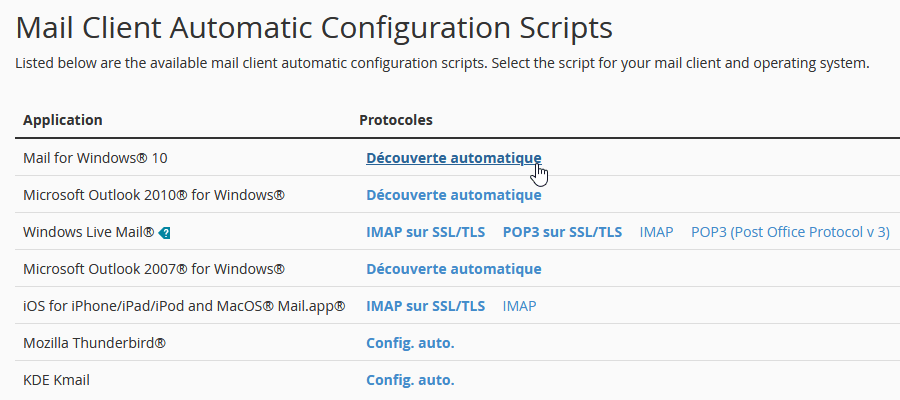
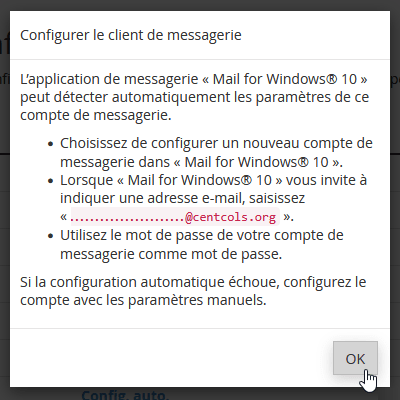
For other systems such as Windows Mail, Outlook or KDE, click on «automatically configure my device» instead. This will give you a list of client software. Then right-click on the corresponding link in the «protocols» column. This will display specific instructions.
Connection via a browser (webmail)
Connect to webmail by entering the following address in a web browser: https://centcols.org:2096
When you first use it, you'll see a page with a «Roundcube» logo. On this page, a number of settings are available, including the ability to change the password. You can also set up an electronic diary and an address list. But as centcols.org accounts are not intended to be main personal accounts, this tutorial does not cover these two additional options.
To see your inbox, click on «open» below the logo. If you tick the «Open my inbox when I log in» box first, you will be taken straight to your inbox the next time you log in. You can always return to the settings page by clicking on «webmail home» on the left.
 Français
 English (UK)
 Italiano
 Deutsch
 Español
 Nederlands (België)